
Your stock,
always accounted for.
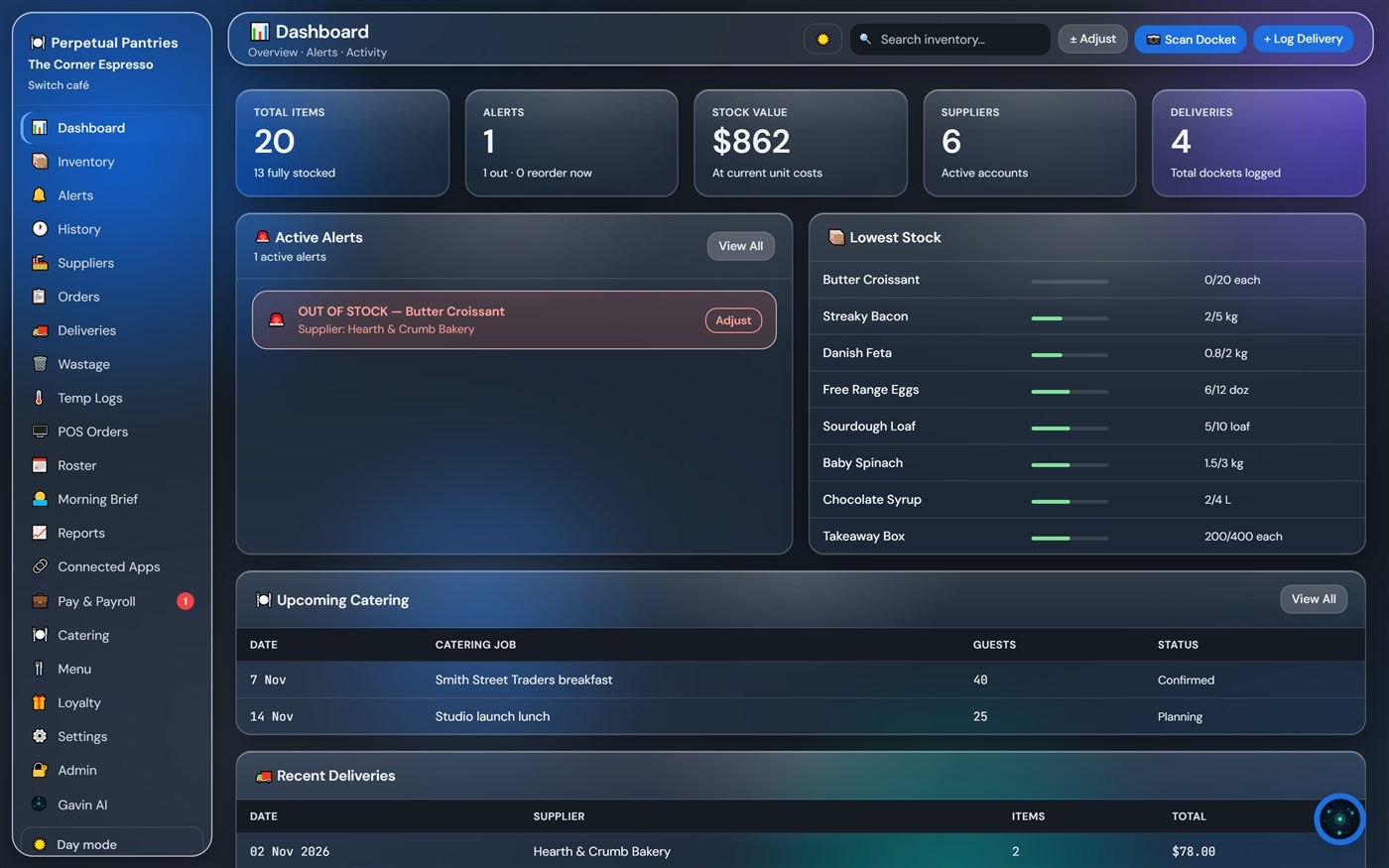
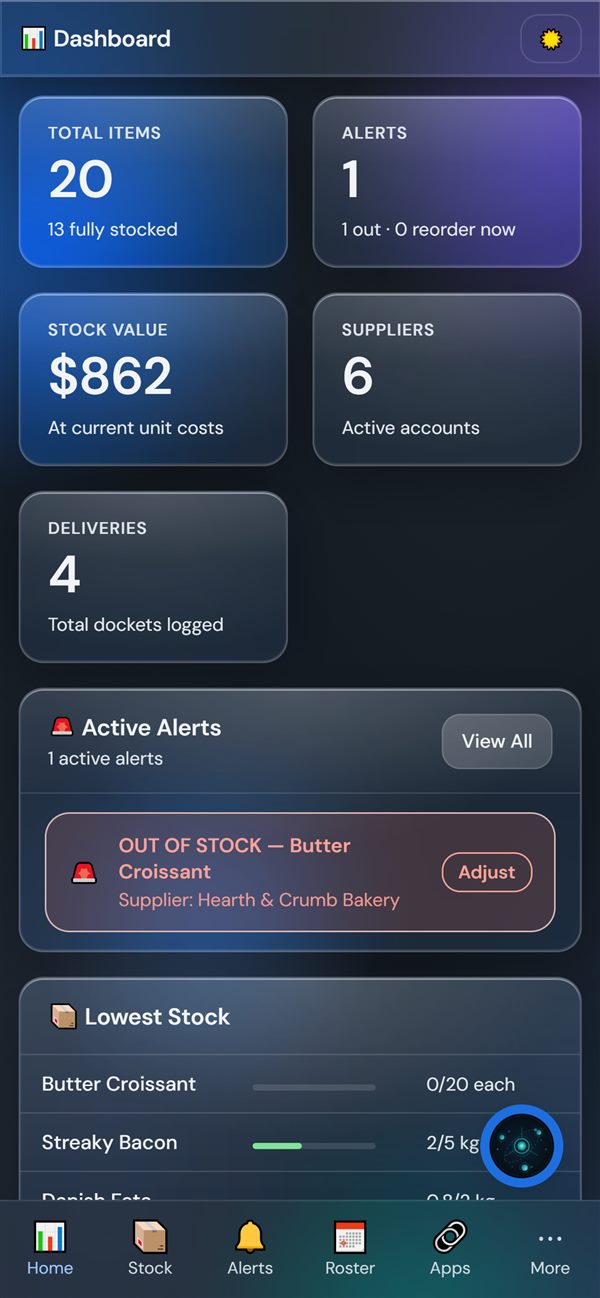
Your POS sales take the ingredients off stock, supplier orders are built for you, and every dish shows what it costs to make. Gavin, your AI assistant, handles the rest from any phone.
● Available on all devices
Three jobs it takes off your hands
Stock and ordering
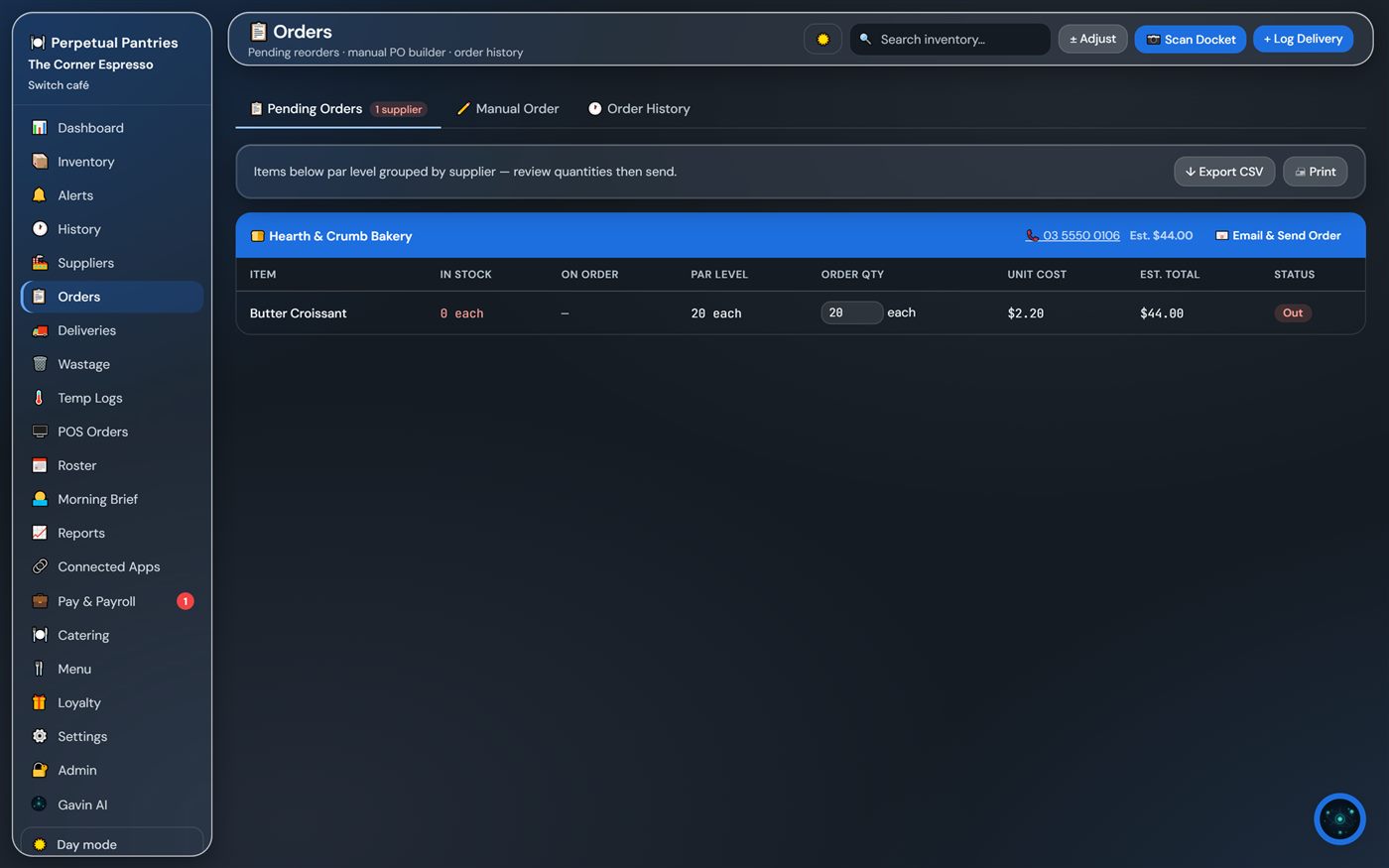
Bring in your POS sales and each dish’s ingredients come off stock by recipe. When something drops below par, the order to that supplier is already built.
- Works with Lightspeed, Square and other POS exports
- Orders grouped by supplier, ready to send
- Deliveries checked against the order, with short items flagged for a credit
Recipes and costing
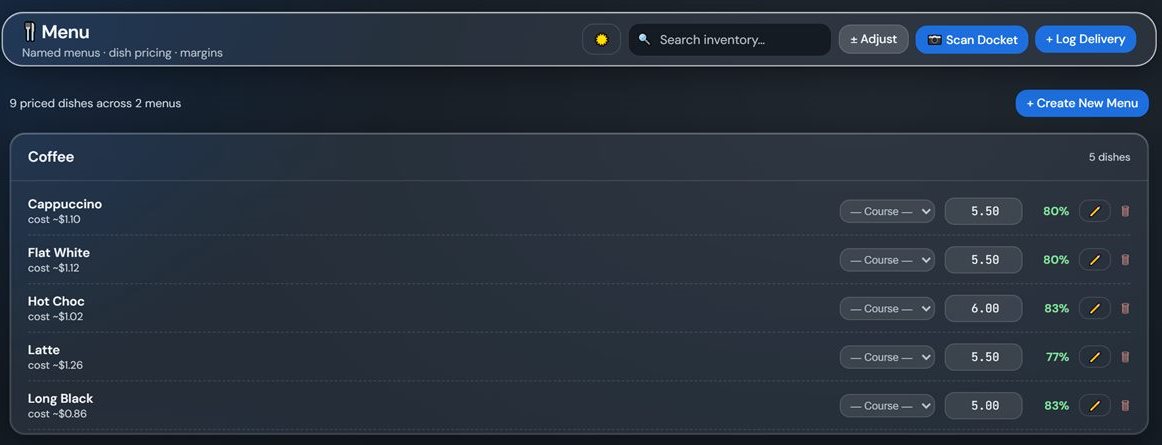
Know what every dish costs to make and what it earns, priced from what you actually pay your suppliers.
- Recipes built from your own ingredients
- Supplier price changes flagged for you to approve
- Margin shown beside every menu price
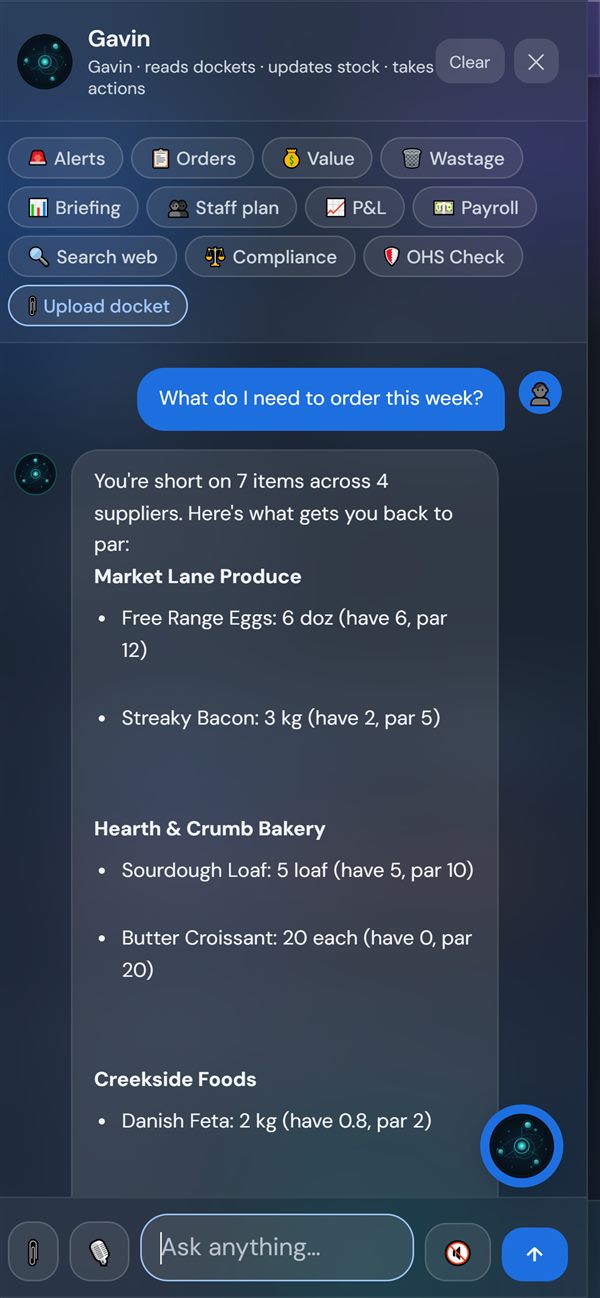
Gavin, the AI assistant
Staff ask Gavin about the café, or ask him to do the job: send an order, log a delivery, record a spill, start a stocktake. All from their phone, in plain words.
Every part of the back of house, in one place
Dashboard
Stock value, alerts and today’s jobs at a glance.
Inventory
Every item with its par level and unit cost.
Suppliers
Contacts, pricing and what each one carries.
Orders
Built from par levels, grouped by supplier.
Delivery dockets
Scan a docket and match it to the order.
Alerts and reordering
Low and out of stock flagged before service.
Wastage
Spills, spoilage and breakage, costed.
Recipes and menus
Dish costs and margins.
Stocktake
Count your stock and see the variance.
Staff, roster and payroll
Shifts and pay in the same app.
Calendar
Order days and the roster planned ahead.
Events and catering
Jobs, menus, headcount and orders per event.
Loyalty
Points, rewards and tiers for your regulars.
Temperature logs
Fridge, freezer and hot-holding checks recorded.
POS and sales
Sales imported, stock deducted by recipe.
Reports
Usage, wastage cost and supplier spend.
Run every venue from one place
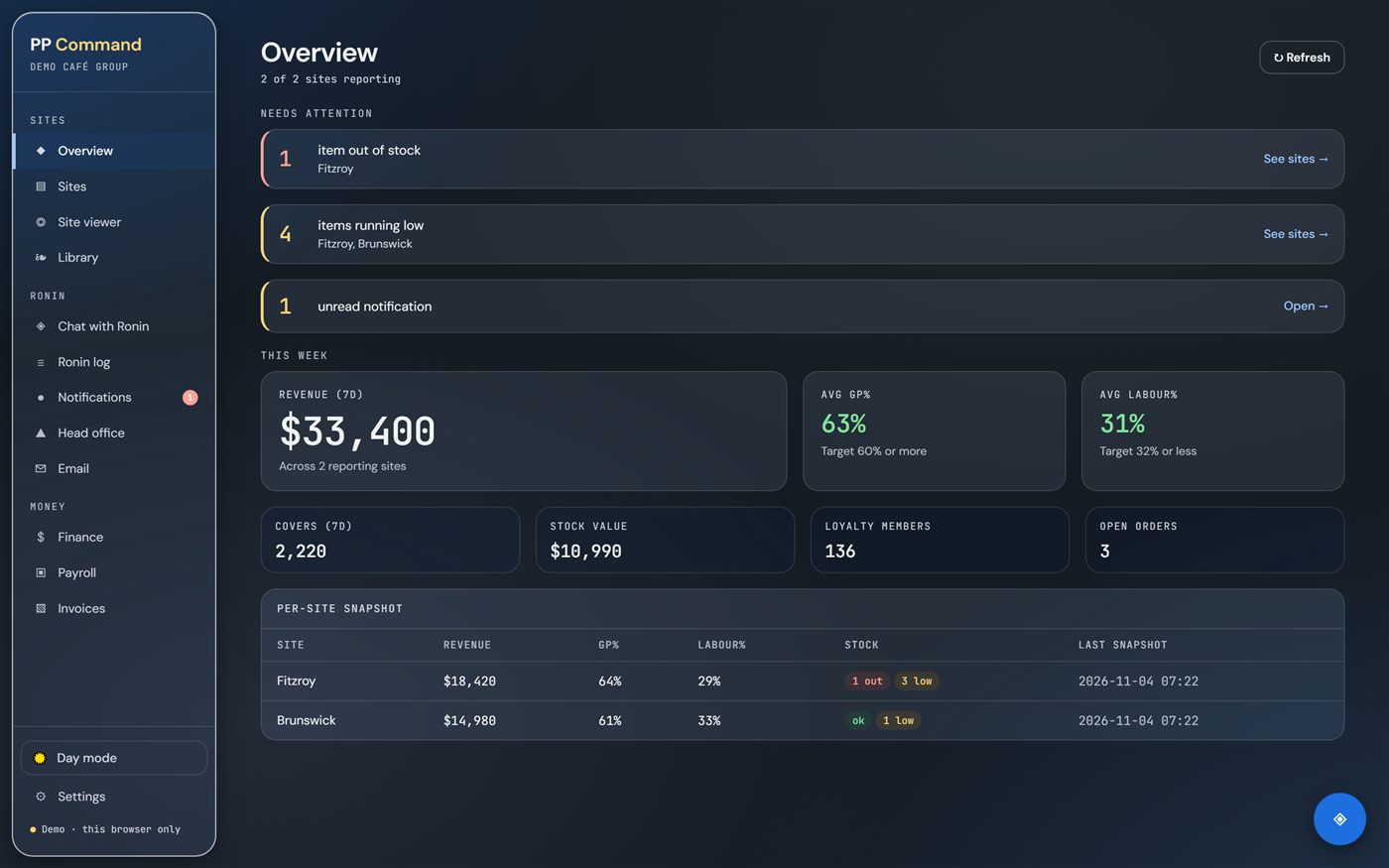
PP Command sits above your cafés. See how each site is tracking, share recipes across the group, and keep head office in the loop, while each café keeps control of its own data.
- An overview of every site, with figures each café chooses to share
- A shared recipe library: each site manager accepts or declines, and costs come from their own supplier prices
- Ronin, the group’s AI assistant, keeps watch across sites and relays between them, with each manager still approving
- Group payroll and invoices together
- Head office sets group rules, and anything over the limit or from an unapproved supplier comes back for sign-off
Each café runs its own app and decides what it shares upward.
Focus on your art,
not your admin.
The counting, costing and ordering get done in the background, so you can get back to the coffee and the food.
Up and running from one link
No app store and no setup visit. Install it on the devices you already have.
- 1
Open the Get the app pageIt shows the right install steps for the device you’re on.
- 2
Install on each devicePhones, tablets and computers in the café.
- 3
Join your caféEnter the invite code from your PP email, and your team is in.
Sage is an AI assistant and can make mistakes. Your messages go to our AI provider to be answered. See our privacy policy.